Why Is My Phone Charging Slowly? 9 Causes and Fixes
You plugged your phone in an hour ago, expecting a proper top-up, and the battery has barely moved — that sinking feeling that the phone might be giving up....
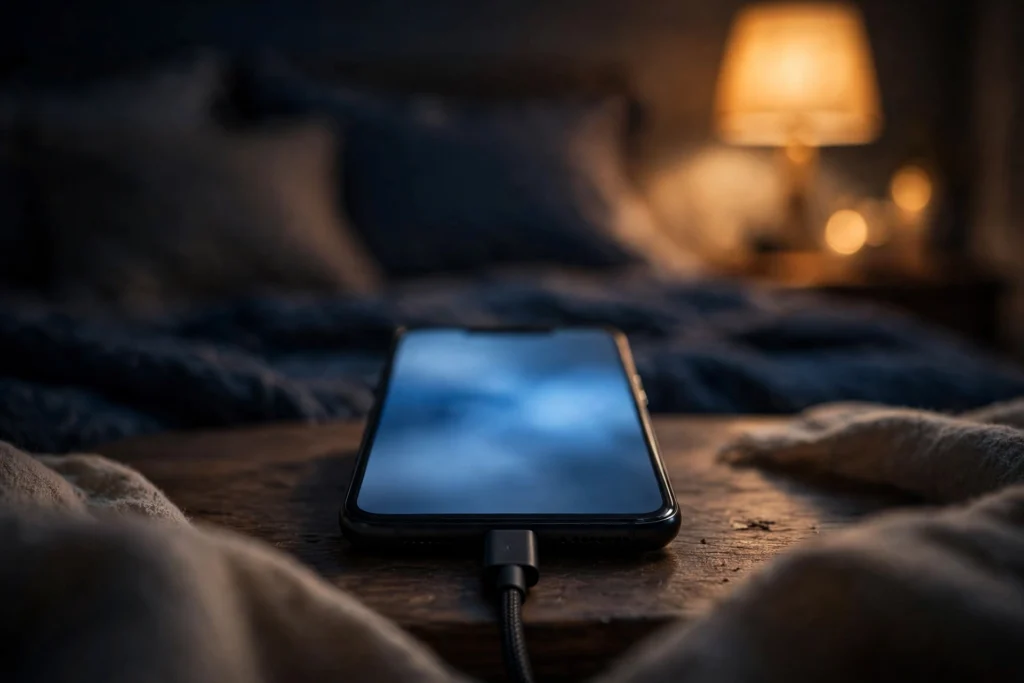
You plugged your phone in an hour ago, expecting a proper top-up, and the battery has barely moved — that sinking feeling that the phone might be giving up. Most of the time it is not. Slow charging is usually a mismatch between the charger, the cable, the heat and a setting you forgot, and this guide works through the nine causes worth checking, in the order that saves you money.
Key points
- Most slow charging is a weak charger, the wrong standard or a limiting cable — not a broken phone.
- Galaxy and Pixel phones need PPS for their fastest speeds, and Samsung 45W also needs a 5A cable.
- Heat, a thick case, heavy use while charging and an 80% limit can all slow charging on purpose.
Start with this quick check. For the background, see USB-C fast charging explained.
| What you notice | Likely cause | First fix |
|---|---|---|
| Slow with an old small brick | Weak charger | Try a USB PD wall charger |
| Fastest mode never appears on Galaxy/Pixel | No PPS | Check label for a PPS range |
| New charger changed nothing | Cable limit | Use the cable from the box |
| Phone warm, charging pauses | Heat | Cool spot, case off |
| Wireless charging crawls | Case or alignment | Remove case or go wired |
| Stops at 80% | Battery setting | Check Charging optimisation |
| “Check charging accessory” warning | Damaged accessory | Try known-good kit |
1. Your charger is too weak
Basic USB-C tops out at 15W — an old 5W brick is slower still.
The bedside-table classic: a little brick from years ago still works, it just cannot deliver much power. Google notes that a wall socket charges faster than a laptop port, and USB-A to USB-C is slower than USB-C to USB-C.
Fix: Use a proper USB PD wall charger matched to your phone. See how to choose a fast charger for the wattage to look for.
2. Your charger lacks PPS
Galaxy and Pixel phones need PPS to unlock their fastest speeds.
Samsung Super Fast Charging (25W) and 2.0 (45W) need USB PD with PPS. Google says a Pixel needs a PPS adapter rated 30W or more for its fastest charging. A PD charger without PPS will charge you — just not at top speed.
Fix: Check the label for a PPS voltage range, for example 3.3–11V. No PPS range, no fastest mode.
3. Your cable is capping the speed
Standard cables carry 3A — 60W at most — and cheap ones may carry less.
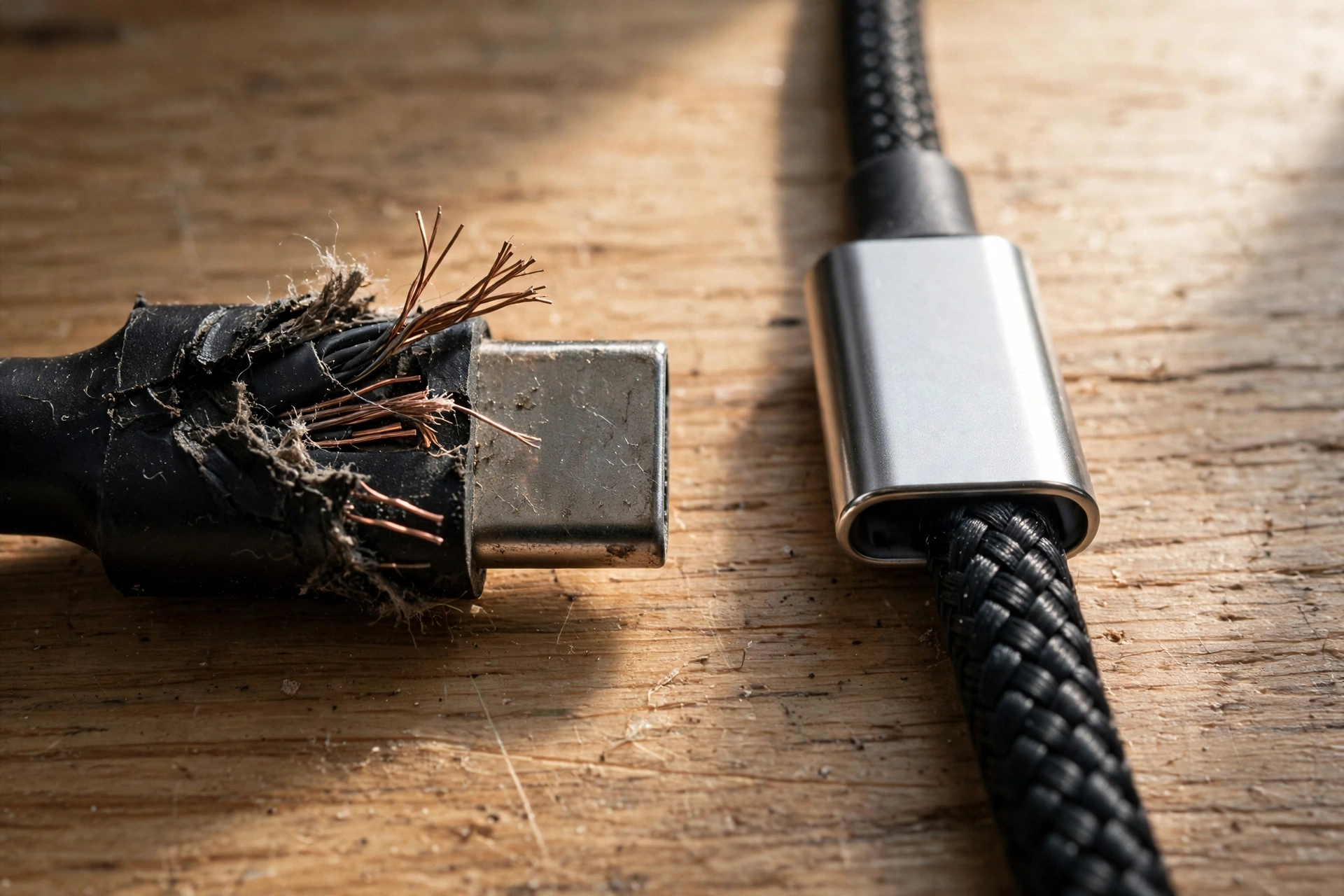
Samsung 45W needs a 5A cable with a 45W adapter. Google warns that a “Check charging accessory” message can mean a cable or adapter is unsupported or damaged, and can cause very slow charging.
Fix: Use the cable that came with the phone, or a rated 100W/240W (5A) cable.
4. Heat is slowing or pausing charging
Phones protect the battery when warm — and that protection looks like a fault.
Apple says fast charging might not work when it is too cold or too hot. Google says a Pixel that gets too warm might pause charging to protect the battery and resume when it cools, and may adjust charging to manage temperature, causing slower charging. Direct sun on a windowsill does it easily.
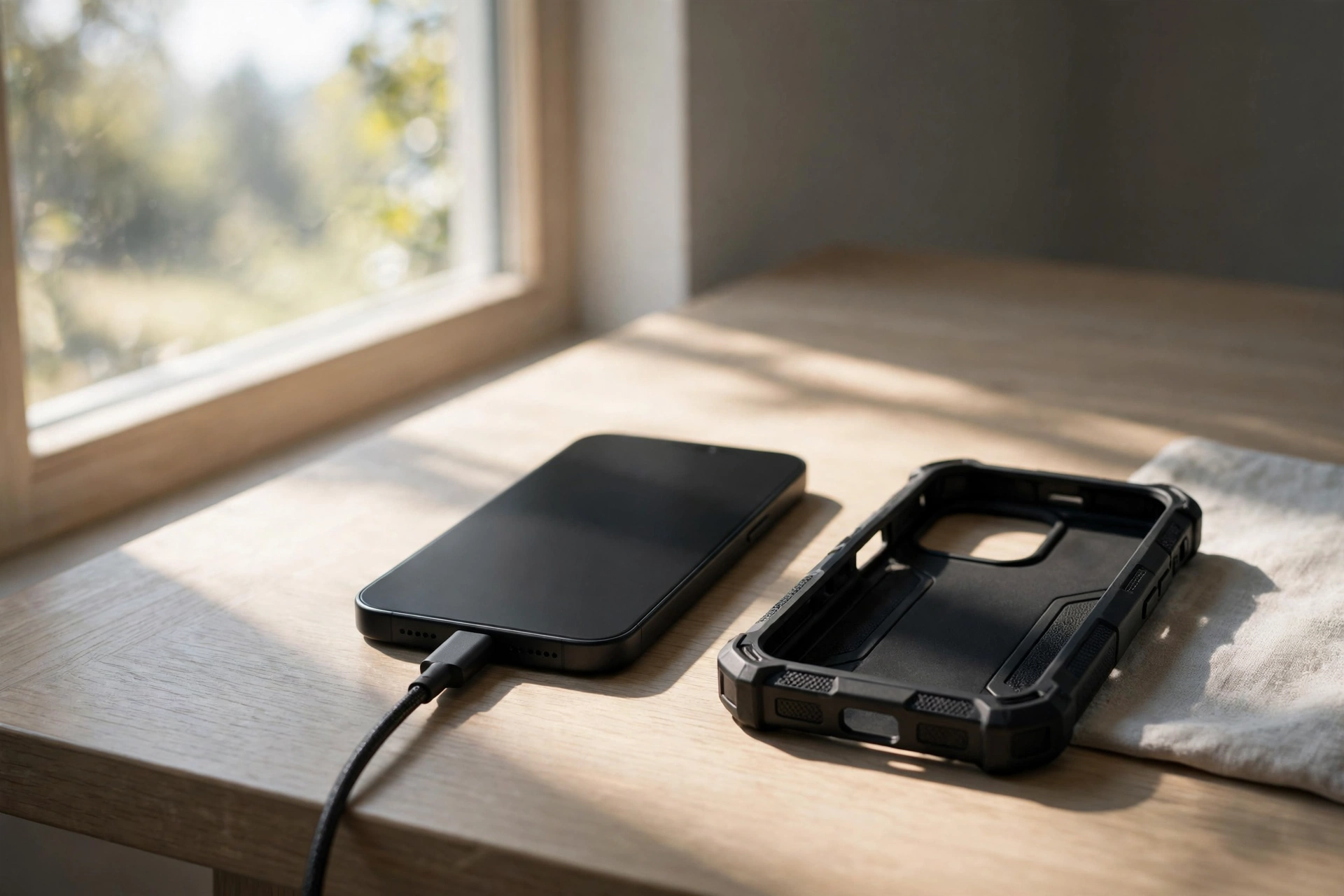
Fix: Charge in a cool spot, out of direct sun, and remove a thick case while charging.
5. Your case or wireless charger is in the way
Thick or metallic cases can disrupt wireless charging; older pads are slow anyway.
Google says thick or metallic cases, including magnets and ring holders, can affect wireless charging or stop it. Older Qi1.x wireless chargers also charge at up to 5W only, however well you align the phone.
Fix: Remove the case, align the phone carefully, or switch to wired charging for speed.
6. You are using the phone heavily while it charges
Power coming in is going straight back out again.
Google advises that you can use the phone while charging, but limiting usage charges it faster. Gaming, video calls and a bright screen all draw power at the same time — at your desk, the percentage can seem stuck.
Fix: Leave it alone for the top-up, or close demanding apps and games while it charges.
7. Charging slows near full — or stops at 80% on purpose
Usually normal behaviour, not a fault.
Charging is fastest when the battery is low and slows near full by design. Pixel Charging optimisation can also limit charging to 80% or adapt to your habits, so a charge that “sticks” overnight may be a setting doing its job.
Fix: Check Battery settings for an 80% limit or adaptive charging before assuming a fault.
8. The port or accessory is damaged
A loose or damaged connection means slow, intermittent charging.
Google’s “Check charging accessory” notification covers damaged or unsupported accessories. A cable that only works at one angle, or a port that no longer grips properly, can leave charging starting, stopping and crawling.
Fix: Try a known-good cable and charger. If the warning persists, seek authorised repair — do not poke objects into the port.
9. Your battery is ageing
Older batteries are charged more gently, and background load adds to the strain.
Google says battery performance declines with use, temperature and age, and phones may adjust charging to protect an older battery. Busy background apps add load on top, so an older phone often charges more cautiously than it once did.
Fix: Check battery health in settings. If the battery is degraded, a service-centre replacement is the real fix.
What this means
Here is the reassuring part, in our view: most slow charging is a mismatch problem, not a dying phone. The charger, the cable and the phone each have their own limit, and you only ever get the lowest of the three. That is why it feels so confusing. You buy a better charger and nothing changes, because the old cable was the ceiling all along. Or you blame the phone, when the culprit is the little 5W brick on the bedside table, still doing its best with a battery far bigger than the one it was made for. In most homes, the answer is already in a drawer somewhere.
So work in order, and change one thing at a time. Start with the charger: is it a proper USB PD wall charger, plugged into the wall rather than a laptop? Then the cable: swap in the one that came with the phone before you spend anything. Then heat: is the phone warm, in the sun, or wrapped in a thick case on the office desk? Then settings: is it stopping at 80% on purpose, perhaps because of a car charger routine or an overnight habit you set months ago? Honestly, most people find their answer in those four steps, and the cost is often nothing. A borrowed cable and five minutes in Settings tell you more than an evening of worried searching.
It also helps to reset what “slow” means. A phone that races to halfway and then eases off is behaving as designed. A phone that pauses when hot, or holds at 80% overnight, is protecting itself, not failing. Those pauses only feel like faults because the phone explains itself so poorly. Our opinion is simple: spend only when a step in the order proves something is limiting you. That matters more now that phones do heavier work on the device itself — see our explainer on smartphone AI features — because a phone you rely on all day deserves a top-up that can actually keep up with it.
Bottom line
Check charger, cable, heat, then settings — in that order. Most slow charging is fixed free, with kit you already own. Chase PPS, a 5A cable or a new battery only when the step before proves you need to.
Related Guides
- USB-C Fast Charging Explained
- How to Choose a Fast Charger for Your Phone
- Smartphone AI Features Explained
Read Next
Sources