How to Tell If Someone Else Is Using Your Wi-Fi (and How to Remove Them)
- Standfirst (first paragraph of content.html): "If your Wi-Fi has slowed down for no clear reason, the quickest way to find out whether a stranger is sharing it is to open your router's list of connected devices and account for every single one.
If your Wi-Fi has slowed down for no clear reason, the quickest way to find out whether a stranger is sharing it is to open your router’s list of connected devices and account for every single one.
Key points
- Slow speeds and busy router lights are hints, not proof — the connected-devices list in your router app or admin page is where the real answer lives.
- Match every entry by name and MAC address against your own phones, laptops and gadgets before you accuse anyone.
- Changing the Wi-Fi password removes everyone at once; then lock the door with WPA3 or WPA2-AES, WPS off and a guest network for visitors.
It usually starts with a small, annoying feeling. A film buffers at the exact moment it should not. A video call goes grainy even though nobody else is home. The router’s lights are blinking like the house is downloading the entire internet. But sometimes it is a neighbour, an old guest, or someone you handed the password to years ago and forgot. You do not have to guess: your router already keeps a list of everything using your network, as our pillar guide to home Wi-Fi security settings explains.

Slower speeds are a clue, but they are never proof on their own
Treat odd behaviour as a reason to check the list, not as a verdict.
Take the hints seriously without over-reading them. A connection that feels slower than usual, especially when your household is quiet, is worth investigating. So is a router that looks busy when every screen is off. None of these proves a stranger is connected: phones upload photo libraries, laptops pull large updates, and smart televisions check in with their makers in the background. In our view, the worst response is panic and the second worst is doing nothing — the hints simply earn you ten minutes with the device list.
Your router already lists every device — here is where to find it
The FTC points you to connected devices, wireless clients or DHCP clients in the admin pages.
The Federal Trade Commission (FTC) gives the starting point plainly: to make sure you know which devices are connected, go to your router’s web interface and look for connected devices, wireless clients, or DHCP clients. You reach that interface by following your router maker’s instructions — the address and default login are usually on a sticker on the router itself, which is also why the defaults need changing.
Mesh systems make this friendlier. Google explains that the Google Home app displays devices that used the network within the last 30 days, including ones not currently connected, and in the Google Wifi app the path is Network, then Devices — a list that includes devices connected by Ethernet cable as well as Wi-Fi. Note how many entries there are before judging any of them; a modern home fills a list faster than anyone expects.
Match each entry to a device you own before you call it a stranger
Names can mislead, so check the MAC address in the device’s own settings.
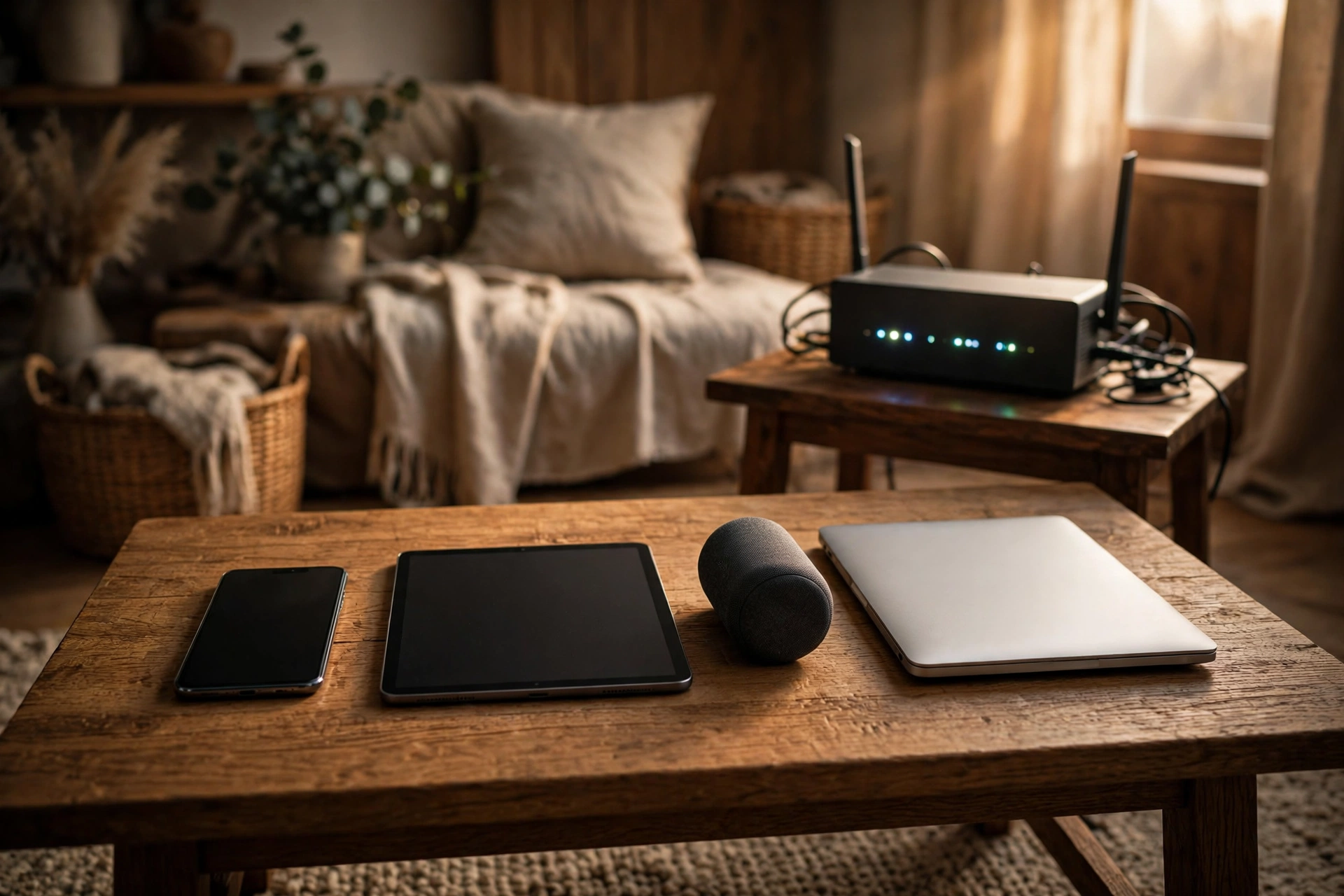
Here is where most people trip up. Device lists are full of unhelpful names: a string of letters, a chip maker’s name, or simply “unknown”. Count the phones, laptops, tablets, televisions, consoles, printers, cameras, doorbells and smart plugs you own — then count again, because the robot vacuum probably joined during setup and was forgotten.
When a name does not settle it, use the details. Google notes that tapping a specific device in its app shows a Details tab with connection status, IP address and MAC address — the hardware identifier a device presents to the network. Compare it with the address shown in that gadget’s own settings; phones, laptops and consoles all display it in their Wi-Fi or About pages. If the two match, the mysterious entry is yours, however strange its name looks — rename it in the app if yours allows that, so next time the list reads like your home, not a riddle.
Removing an unknown device means changing the password, not just tapping delete
Kicking one entry off helps for a day; a new password helps for good.
Suppose one entry survives your audit: no name you recognise, a MAC address that matches nothing you own, active at hours when your household is asleep. Some router apps let you pause or block an individual device, and that is a reasonable first tap. But anyone who still knows your Wi-Fi password can be back when the block is lifted or a borrowed device reconnects.
The removal that works on every router is changing the Wi-Fi password. The moment you save a new one, every device — yours and the stranger’s — is disconnected, and only devices you give the new password to can return. Reconnecting your own devices afterwards is mildly tedious, and it is also the entire point: the list that rebuilds is one you personally authorised. If the unknown entry reappears after that, follow the lockdown steps below and check again.
Once they are out, lock the door properly this time
A long passphrase, modern encryption and a guest network stop the repeat visit.
Do not hand the old habits a new password. The Cybersecurity and Infrastructure Security Agency (CISA) suggests a Wi-Fi passphrase of five to seven unrelated words, at least 16 characters long. Store it in a password manager, not on a note by the router. Then check the encryption: CISA says WPA3 Personal or WPA2 with AES are the only two forms considered safe, and if your router offers only an open network or older options such as WEP, WPA or WPA2 with TKIP, ask your provider about an upgrade or consider a new router.
Finish the job our step-by-step router security checklist lays out: change the administrator password to one that is long, random and unique, because CISA warns the default details may be publicly available; disable Wi-Fi Protected Setup (WPS), which CISA says increases the likelihood of unauthorised access; and disable remote management, so nobody can reach the settings from the internet. Finally, switch on the guest network with its own password, and give that — never the main password — to visitors; CISA recommends smart-home devices live there too when all they need is internet access.
What this means
Ten minutes with a list turns a vague worry into a network you actually control.
What this really means is a shift in how the network feels. Most of us hand out our Wi-Fi password the way we hand out glasses of water: freely, kindly, and without keeping any record. The cleaner who came twice in 2023 has it. The cousin who stayed one weekend has it. The neighbour whose broadband went down during a storm may still have it, saved in a phone that reconnects automatically near your walls. None of those people needs to be a villain for this to matter. A password shared that widely is not really a password any more; it is just a rumour with your name on it.
Checking the device list changes that, and in our view it is worth doing even when you find nothing suspicious — perhaps especially then. There is a particular calm in looking down a list and being able to say, out loud, “that is ours, and that one, and that one too.” You also learn how many things in your home are quietly online — useful the next time the connection crawls and everyone blames the provider. The router stops being a mysterious box the installer left behind and becomes something you check a few times a year, the way you check a smoke alarm.
And if you do find a stranger? Try not to let it ruin your evening. In most homes the story is mundane — an old password, shared once with the best intentions, travelling further than anyone meant it to. The fix is equally mundane: one new passphrase, one evening of reconnecting your own devices, and a guest network for everyone who visits from now on. Your connection gets faster or it does not, but either way it becomes yours again — every device on it present because you said so, and nobody freeloading in the background while you pay the bill and wonder why the film keeps buffering.
Bottom line
Check the list, match the addresses, change the password, then lock down.
In our view, this is a job worth doing tonight. Match every entry by name and MAC address; if one device is not yours, change the password and reconnect only your own. Finish with WPA3 Personal or WPA2-AES, WPS and remote management off, and a guest network for visitors.
Related Guides
Keep reading in this series.
- Home Wi-Fi Security Explained: The Router Settings That Actually Protect Your Home
- How to Secure Your Home Wi-Fi Step by Step: A Router Checklist
- 7 Home Wi-Fi Mistakes That Leave Your Network Open (and How to Fix Them)
Sources
Official guidance opened and checked for this article.