How to Secure Your Home Wi-Fi Step by Step: A Router Checklist
- Standfirst (first paragraph of content.html): "Work through these router settings in order, and your home Wi-Fi will go from factory defaults to properly protected.
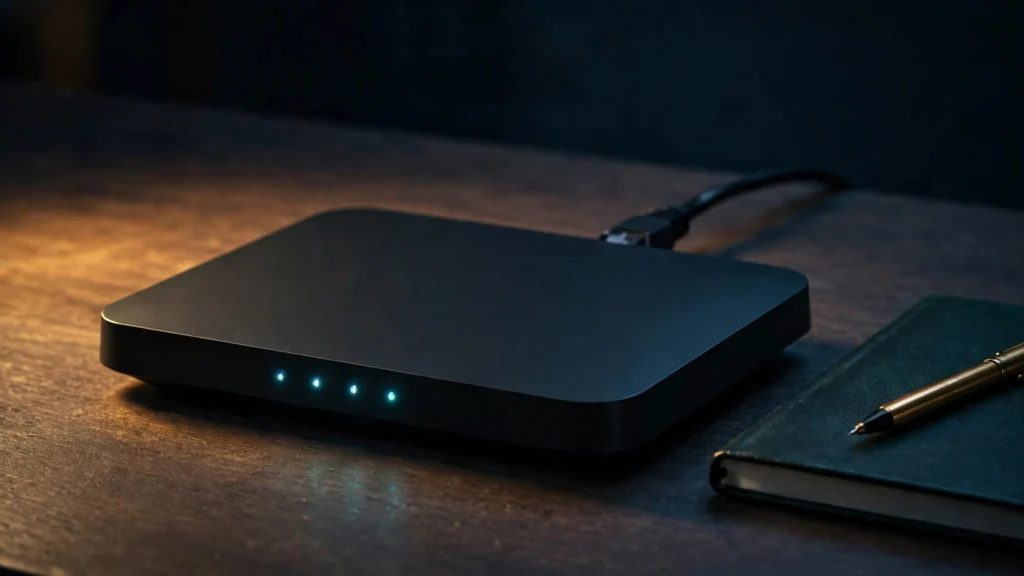
Work through these router settings in order, and your home Wi-Fi will go from factory defaults to properly protected.
Key points
- Start with the two passwords: a unique admin password for the settings, and a long passphrase for the Wi-Fi itself.
- Set encryption to WPA3 Personal or WPA2 with AES, update the firmware, and rename the network without personal details.
- Finish by disabling WPS, remote management and UPnP, creating a guest network, and logging out of the admin page.
Checklists suit router security, because the job is not difficult — it is just easy to do half of. People change the Wi-Fi password and never discover the admin login is still the default on a sticker. This walkthrough follows the official guidance from the Cybersecurity and Infrastructure Security Agency (CISA) and the Federal Trade Commission (FTC). Before you start, have the router’s manual open, because CISA reminds readers that every router is different and menu names vary.
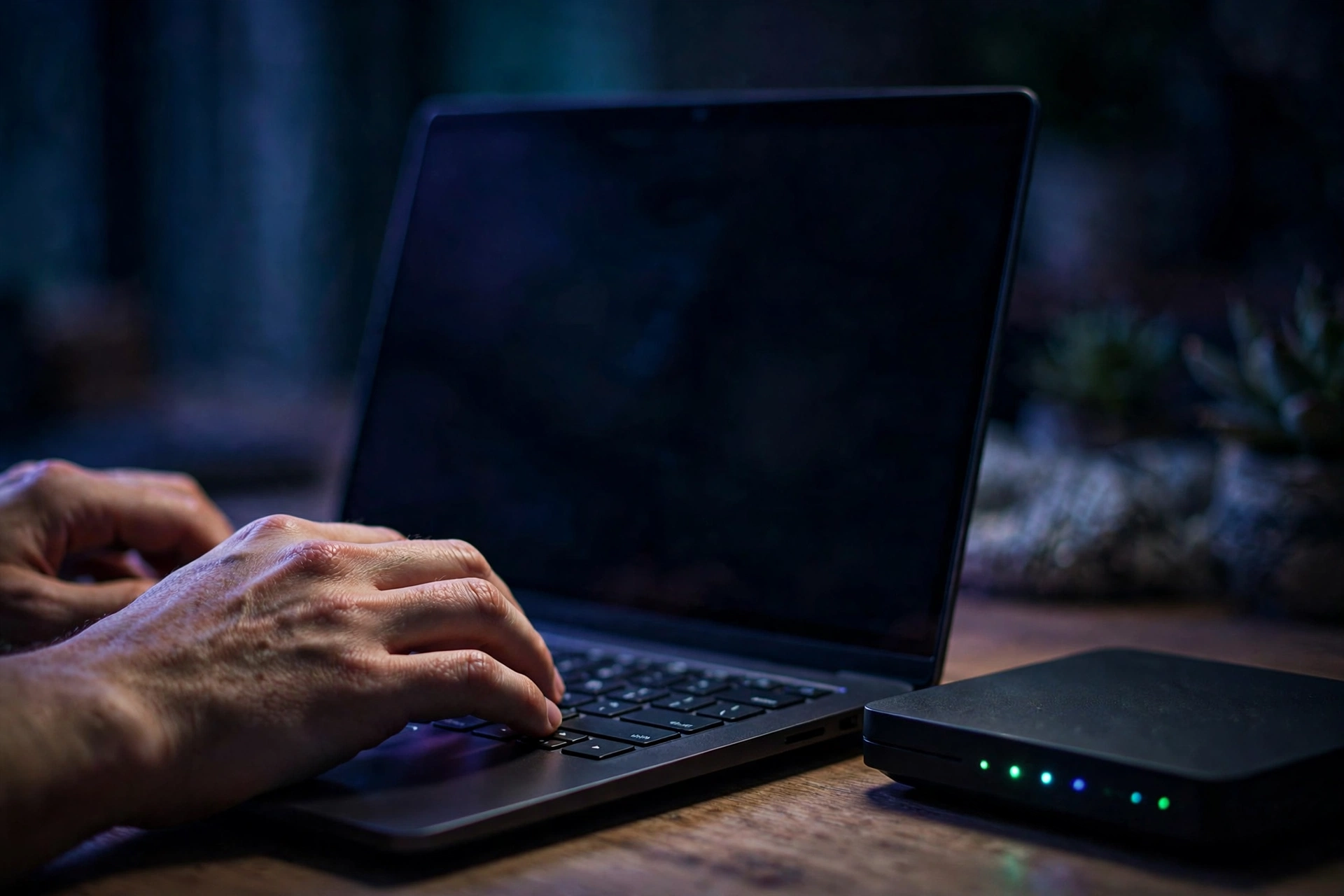
Step 1 — Sign in and change the administrator password first
The admin login protects every other setting, so it is the first thing to fix.
Open the router’s settings page using the address in its manual, and sign in — the current details are often printed on the router itself. Your first job is the administrator password. CISA explains why: default router information may be publicly available, so change your credentials to a password that is long, random and unique. The FTC says the same.
Store it in a password manager. Whoever holds this password can change your encryption and access rules. Do not make it the same as the Wi-Fi password you are about to set, or build it from your name, address or the router’s brand — the FTC warns against all three.
Step 2 — Set a strong Wi-Fi passphrase of your own
Five to seven unrelated words, at least 16 characters, used nowhere else.
Next, change the Wi-Fi password itself. CISA’s recipe is refreshingly human: a memorable passphrase of five to seven unrelated words totalling at least 16 characters, not used elsewhere. Ordinary words pictured as a silly scene beat a short jumble of symbols, and length does the heavy lifting against guessing. You type it once per device, so there is no prize for keeping it short.
While you are on this screen, change the network name — the SSID. CISA notes a default name can alert an attacker to known vulnerabilities associated with your router, and both CISA and the FTC warn against personal information in the name. Your surname, flat number or the router’s brand give away too much. Choose something neutral, and move on.
Step 3 — Choose WPA3 Personal, or WPA2 with AES
These are the only two encryption options CISA considers safe — check yours now.
Now find the wireless security setting. Make sure the router uses WPA3 Personal or WPA2 AES — also shown as WPA2 PSK — the only two forms CISA considers safe. If the screen shows an open network, or WEP, WPA or WPA2 with TKIP, CISA advises contacting the provider about an upgrade, or considering a new router.
If WPA3 is offered, prefer it. The Wi-Fi Alliance explains that WPA3-Personal replaces WPA2’s pre-shared key method with Simultaneous Authentication of Equals (SAE), resisting offline dictionary attacks and providing forward secrecy. If an older device will not connect, use WPA3 transition mode. Our pillar, Home Wi-Fi Security Explained, covers the reasoning in depth.
Step 4 — Update the firmware and turn on automatic updates
Routine updates protect against known vulnerabilities — set them and forget them.
Firmware is the router’s built-in software, and updating it is the step most households have never done. CISA lists checking it among the minimum essential steps, noting routine updates protect against known vulnerabilities — and some routers allow automatic updates, which you should enable.
If there is no automatic option, check this page every few months, and do not unplug the router while an update installs. Afterwards, glance at the connected-devices list — the FTC suggests looking for connected devices or wireless clients — and make sure everything listed is yours.

Step 5 — Switch off WPS, remote management and UPnP
Three convenience features, three side doors — close the ones you do not use.
Now close the side doors. CISA advises disabling remote management, which allows logging in over the internet, because disabling it stops attackers changing your router without first connecting to your network. It advises disabling Wi-Fi Protected Setup (WPS) too, since WPS increases the likelihood of unauthorised access. And it advises disabling Universal Plug and Play (UPnP), which attackers can use to spread malware — with one exception: if you need UPnP briefly to add a smart device, disable it again afterwards.
The FTC adds a related habit: disable or disconnect what you do not use, because out-of-date security on one forgotten device weakens everything else. If a setting’s name differs, search the manual — the features are standard, even when labels are not.
Step 6 — Create a guest network, then log out
Visitors and smart devices get their own network with its own password.
If your router has a guest Wi-Fi option, enable it with a separate password that is long, random and unique. Anyone who does not routinely connect uses it — and CISA also recommends connecting smart-home devices there when all they need is internet access, so they cannot discover your other devices. A VPN checklist helps beyond the home; inside it, this separation is the workhorse.
Finish properly: turn the firewall on, store the router somewhere not easily accessible — CISA notes anyone with physical access could factory-reset it — and log out of the admin account. Then reconnect your devices and enjoy a finished list.
What this means
Six small steps turn an ignored box into a properly locked front door.
There is a particular kind of guilt that comes with router settings. The box has been blinking in the corner for years, doing its job without complaint, while somewhere in the back of your mind you knew the password was still the one on the sticker. Everyone in the house relies on it every hour of the day, yet nobody feels they own it — it arrived with the broadband, it belongs vaguely to the provider, and touching it feels like it might break the internet for the whole family at the worst possible moment. If that sounds familiar, you are exactly the reader this checklist was written for.
The reassuring truth, in our view, is that the official guidance is not asking you to become a network engineer. It is asking for six ordinary decisions, each reversible, each explained in your router’s own manual. Nothing in this list can damage your hardware. The worst realistic outcome is a device asking for the new password, which takes a minute to fix with a cup of tea in hand. Compare that with the alternative — leaving factory defaults in place year after year — and the balance of effort looks very different. An evening of mild inconvenience now is considerably cheaper than the confusion and hurry of sorting out a compromised network later, when you would be changing every password at once, under pressure, wondering what else was touched.
So treat this as housekeeping, not heroics, the digital equivalent of locking the back door before bed. Work down the list, tick each step off honestly, and put a date on your calendar to glance at the firmware again in a few months. Then forget the router again, cheerfully — because this time it is forgotten in the right state, with its doors locked, its guests in their own room, and its keys in your keeping rather than printed on the side. That is a better evening’s work than most security advice ever asks of you — and it asks nothing of you again tomorrow.
Bottom line
Defaults off, encryption up, guests separated — that is the whole job.
In our view, this is the highest-value hour in home technology. Two unique passwords, WPA3 or WPA2-AES encryption, current firmware, three convenience features off, a guest network, and a proper log-out — that is the whole distance between a router as it ships and a router as the FTC and CISA intend it to run. Work through it once, and your network stops relying on luck.
Related Guides
Keep reading in this series.
- Home Wi-Fi Security Explained: The Router Settings That Actually Protect Your Home
- WPA2 vs WPA3, Guest Networks and WPS: What the Wi-Fi Security Settings Actually Mean
- 7 Home Wi-Fi Mistakes That Leave Your Network Open (and How to Fix Them)
- Two-Factor Authentication Explained: Prompts, Authenticator Apps, Security Keys and Backup Codes
Sources
Official guidance opened and checked for this article.