How to Turn On Two-Factor Authentication on Google, Microsoft and Apple Accounts
Your password alone is no longer enough — here is how to switch on the second step for Google, Microsoft and Apple, using only the official menus.
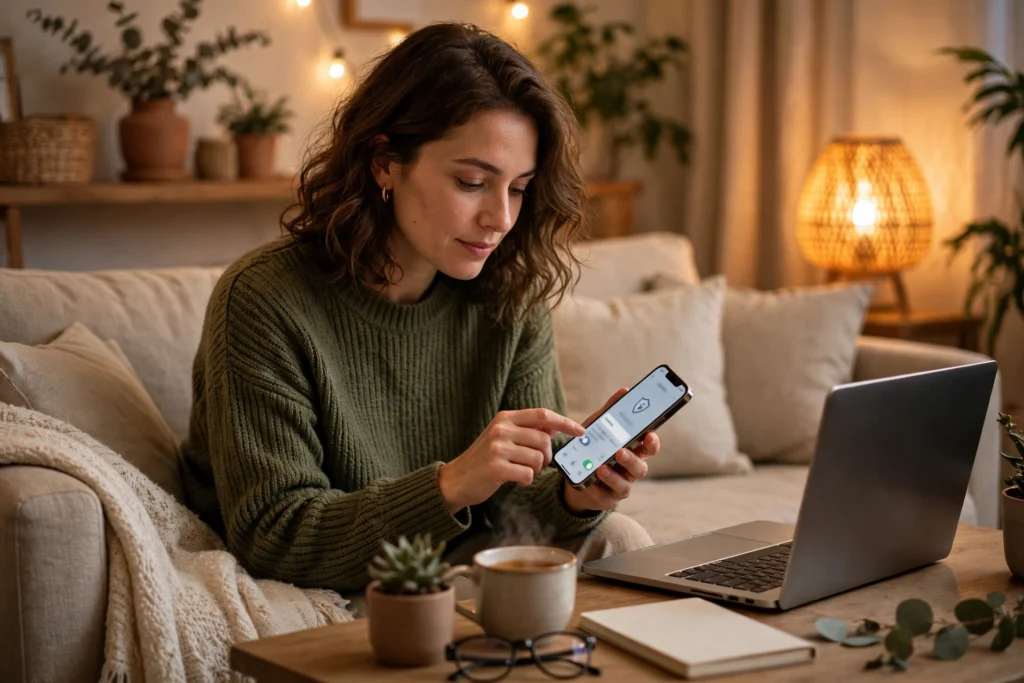
Your password alone is no longer enough — here is how to switch on the second step for Google, Microsoft and Apple, using only the official menus.
Key points
- Google: open your Google Account, go to Security & sign-in, and under “How you sign in to Google” select Turn on 2-Step Verification.
- Microsoft: sign in to the Security tab, choose Manage how I sign in, and under Additional security turn on Two-step verification.
- Apple: Settings or System Settings, [your name], Sign-In & Security — turn it on, and save a backup or recovery route for each account the same day.
Google calls it 2-Step Verification, and it starts in Security & sign-in
Four taps, then you choose how the second step reaches you.
Google uses the name 2-Step Verification. As Google Account Help puts it, it adds “an extra layer of security to your account in case your password is stolen”. After set-up, you sign in with your password and a second step, or with a passkey. Our pillar, Two-Factor Authentication Explained, covers how those steps differ.
- Open your Google Account.
- Tap Security & sign-in.
- Under “How you sign in to Google,” select Turn on 2-Step Verification.
- Follow the on-screen steps.
Google recommends Google prompts if you are not using a passkey: tap Yes to allow a sign-in you requested, or No to block one you did not. Alternatives include an authenticator app, a 6-digit code by text or voice call, a passkey or a hardware security key. Two warnings from Google: never share verification codes, and text or call codes “can be vulnerable to phone number-based hacks” — so a prompt, passkey or app is stronger. For work or school accounts, Google says to contact your administrator.
Microsoft turns it on from the Security tab, under Additional security
A code to your email, phone or app on untrusted devices.
Microsoft also calls it two-step verification: two forms of identity — your password, and a contact method, also known as security info. When it is on, you get a security code to your email, phone or authenticator app every time you sign in on a device that is not trusted.
- Sign in to your Microsoft account Security tab at account.microsoft.com/security.
- Select Manage how I sign in to show the ways to prove who you are.
- Under Additional security and Two-step verification choose Turn on.
- Follow the instructions shown on the screen.
Two details deserve care. First, Microsoft says it begins with an email address — it recommends two different addresses, your usual one and one as backup — a phone number, or any authenticator app; during set-up you may be given a QR code to scan for the Authenticator app. Second, once it is on you will always need two forms of identification, so Microsoft strongly recommends three pieces of security info, just in case. It will also start phasing out SMS for personal accounts, so an app or email route is more future-proof.
Apple turns it on from Sign-In & Security, and many accounts already have it
Your password plus a six-digit code on a trusted device.
Apple says two-factor authentication is “the default security method for most accounts”, and most accounts already use it. Signing in on a new device or on the web needs your password and the six-digit code automatically displayed on your trusted devices or sent to your trusted phone number.
On a device:
- Go to Settings on your iPhone or iPad, or System Settings on your Mac.
- Choose [your name], then Sign-In & Security.
- Turn on two-factor authentication and follow the onscreen instructions.
On iPhone, Apple’s guide adds: tap Turn On Two-Factor Authentication, then Continue, enter a trusted phone number, tap Next, and enter the code sent to that number — your iPhone then becomes a trusted device. On the web: go to account.apple.com, sign in, enter a code sent to your email or answer security questions if asked, then tap Upgrade Account Security and follow the onscreen instructions. If your account was created using it, Apple says it cannot be removed.

Save your way back in on the same day, for all three accounts
It helps only if a lost phone cannot lock you out.
Google — backup codes. With 2-Step Verification on, go to your Google Account, click Security & sign-in, under “How you sign in to Google” click 2-Step Verification, and under “Backup codes” click Continue. Print or download the 8-digit codes and keep them somewhere safe, “like where you keep your passport or other important documents”. You can get a new set of 10 whenever you want; a new set makes the old set inactive, each code works once, and you should never share them. They are unavailable in the Advanced Protection Program.
Microsoft — recovery code. Go to the Manage how I sign in page, scroll to the Recovery code section and select Generate a new code. That creates a 25-digit code for regaining access if you forget your password or your account is compromised. Microsoft’s instruction is plain: “Print the recovery code and keep it in a safe place” — and do not store it on a device used to sign in. A new code replaces any previous one; you cannot retrieve an existing code later.
Apple — trusted devices and phone numbers, not paper codes. Apple does not hand you printable backup codes. Your safety net is the six-digit code displayed on any trusted device, or sent by text or phone call to a trusted phone number. So keep one trusted number current and consider adding another in Sign-In & Security — if you permanently lose both, Apple warns recovery “might take a few days or longer”. Keep all three accounts’ recovery material on paper, offline, alongside your password manager notes.
What this means
Twenty unhurried minutes now is the cheapest account insurance you will ever buy.
If security settings make you nervous, you are exactly the person this guide is for, and there is nothing wrong with that. These screens were not designed to feel friendly. The labels differ for no good reason — Google says 2-Step Verification, Microsoft says two-step verification, Apple buries the switch under Sign-In & Security — and every page seems to warn you about something. It is understandable to open a menu like that, worry you might break something or lock yourself out, and quietly close it again. Most people do. The honest truth is that nothing happens until you confirm it, and each provider walks you through it on screen.
What is not reversible is the afternoon someone else gets your password. Passwords leak in breaches, get guessed, and get handed over to convincing fakes — our guide to AI scams and deepfake protection shows how polished those fakes have become. A second step changes that story: the stolen password alone opens nothing, because the thief still needs the prompt on your phone, the code on your trusted device, or the app in your hand. In our view, that is the best ratio of effort to protection in everyday security — a few minutes per account, once, for closing the most common way accounts are taken over.
Start with the account that guards the others. For most people that is email, because password resets for almost everything else land there. Do Google first if Gmail is your hub, then Microsoft, then Apple, and do the boring part — printed Google backup codes, printed Microsoft recovery code, a second trusted phone number for Apple — now, not “later”. Later is where good intentions are forgotten, usually until the phone is already lost. Keep the paper somewhere safe and boring, tell no one the codes, and never type one into a page someone sent you. Your sign-ins will ask for one extra tap now and then on a new device, and in return the worst password day of your life becomes a non-event.
Bottom line
Turn it on today — and file the recovery route with it.
Google: Security & sign-in, Turn on 2-Step Verification, print your backup codes. Microsoft: Security tab, Manage how I sign in, Additional security, Turn on — then print the 25-digit recovery code. Apple: [your name], Sign-In & Security, turn it on and keep a trusted phone number current. Three accounts, one sitting, and your passwords stop being a single point of failure.
Related Guides
Go deeper on second steps and security keys.
- Two-Factor Authentication Explained: Prompts, Authenticator Apps, Security Keys and Backup Codes
- Password Managers Explained
- AI Scams and Deepfake Protection
Read Next
More account-safety guides.
Sources
The official help pages behind every step.