Passkeys Explained: How They Work and Why They Are Replacing Passwords
Passkeys explained in plain English: the key pair, why phishing cannot steal them, where they sync, what happens if you lose a device, and whether to switch now.
Passkeys Explained: How They Work and Why They Are Replacing Passwords
A passkey lets you sign in with the same step you use to unlock your device, instead of typing a password you invented and reused. The FIDO Alliance defines a passkey as a FIDO authentication credential that can be stored on your phone or computer, or in a hardware security key, and lets you sign in with biometrics, a PIN, or a pattern. Google puts the phishing point plainly in Chrome Help: passkeys are connected to the app or website they were created for, so you can never be tricked into using your passkey to sign in to a fraudulent app or website. To see where passkeys fit alongside managers, read Password Managers Explained: How They Work and Whether You Need One alongside this explainer.
Highlights
- A passkey is a cryptographic key pair: the private key stays with you, the public key goes to the service.
- Signing in means your device signs a fresh challenge after you unlock it with Face ID, a fingerprint, or a PIN.
- Because the credential is tied to the real site, a lookalike phishing site cannot use it.
- Passkeys can sync through iCloud Keychain, Google Password Manager, or a standalone manager such as 1Password or Bitwarden.
What a passkey actually is
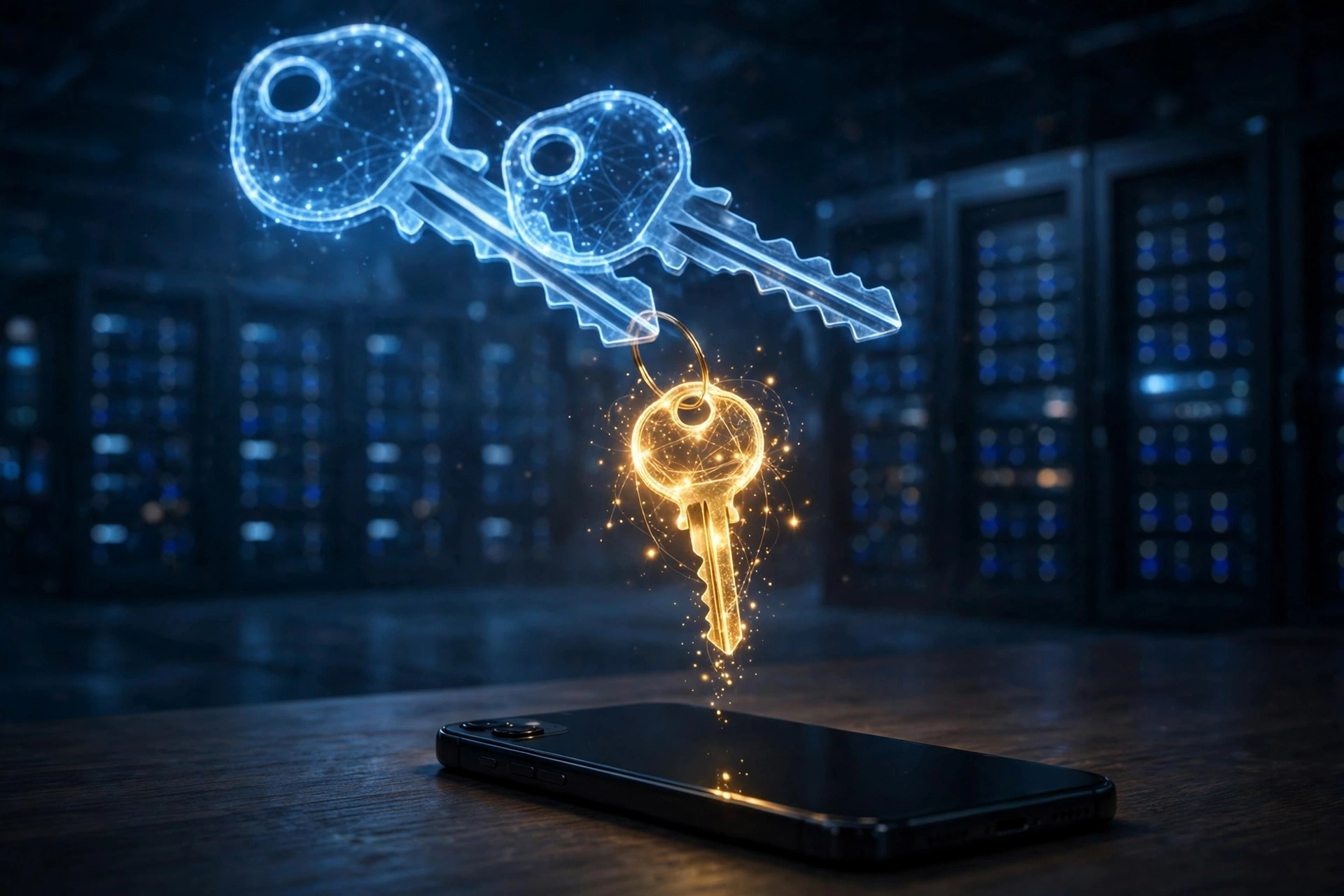
A passkey is not a better password and it is not your fingerprint sent to a website. It is a pair of cryptographic keys created for one account on one service. One half, the private key, stays in your device or in your password manager and is never meant to be typed, read or shared. The other half, the public key, is given to the website or app, which stores it against your account. The two keys are mathematically linked, so the service can check a signature made by the private key without ever holding the private key itself.
The FIDO Alliance explains that passkeys replace passwords with cryptographic key pairs for phishing-resistant sign-in, that the keys are used from end-user devices such as computers, phones or security keys, and that passkeys can be securely synced across a user’s devices or bound to a particular device. That last distinction matters in daily life. A synced passkey follows you through your chosen provider. A device-bound passkey, such as one on a hardware security key, stays on that hardware. Both are passkeys; they differ in how you recover them if hardware is lost.
How signing in works, step by step
When you create a passkey, you first sign in to a supported site in the usual way or start a new account, choose the site’s option to create or add a passkey, and confirm with your device unlock. Your device or manager creates a new key pair for that site and account, keeps the private key, and sends only the public key to the service. Apple describes the same general shape on iPhone: go to the sign-in screen for a supported website or app, and when you see the option to save a passkey, tap Continue, and the passkey is saved. Google describes it for Chrome and Google Password Manager as selecting Create when a site asks if you want to create a passkey there, with a Google Password Manager PIN created on a first passkey if you do not have one yet.
Signing in later reverses the flow without exposing a secret. The service sends a fresh challenge. Your device checks that the request is for the site the passkey was created for, asks you to unlock with Face ID, Touch ID, a fingerprint, a device PIN or a passcode, and then uses the private key to sign the challenge. The service verifies that signature with the public key it stored. Your biometric itself stays on the device; FIDO notes that biometric information and processing continue to stay on the device and are never sent to a remote server, which only receives assurance that the check succeeded. There is no shared password for the service to store, leak or compare against a stolen list.

Why phishing cannot steal a passkey the way it steals a password
Phishing works when a person can be persuaded to type a reusable secret into the wrong place. A password fits in a text box on a real site and, just as easily, on a convincing copy. A one-time code can also be relayed while it is still valid. A passkey removes the text box from the attack. You cannot dictate it over the phone, paste it into a fake form, or reuse it on a lookalike domain, because the credential is scoped to the service it was created for and the authenticator will only present it to that site.
FIDO calls passkeys phishing-resistant and designed so there are no shared secrets. Google makes the same point for ordinary users: a passkey is unique for each site and app, and it is connected to that app or website, so a fraudulent site cannot trick you into using it there. Bitwarden, describing passkeys stored in its vault, says each passkey works only on the website it was created for, so fake lookalike sites cannot trick you into using it. Phishing-resistant does not mean all account attacks end. Attackers can still target your email recovery, your unlocked device, or sites where you fall back to a password. It means the specific trick of harvesting a typed secret on a fake page stops working for that account.
Where your passkeys live: Apple, Google, or a standalone manager
You choose a home for synced passkeys, and that choice decides how they follow you. On Apple devices, passkeys are encrypted and stored in iCloud Keychain, are not visible to anyone including Apple according to Apple Support, and work on devices signed in to the same Apple Account; on iPhone they are found in the Passwords app. In Google’s world, you can save passkeys in Google Password Manager to use across devices signed in with the same Google Account on Chrome or Android, they are backed up and synced to that account, and you unlock them with a Google Password Manager PIN or an Android device lock PIN, pattern or password.
A standalone manager is the third home, useful if you mix Apple, Windows and Android or want passwords and passkeys in one vault. Bitwarden says passkeys saved in its vault are synced between devices where you use Bitwarden and are protected with its end-to-end encryption, and that storing and using them is available through its browser extension, mobile apps and desktop apps. 1Password likewise lets you save passkeys and sign in with them, and its Watchtower can flag logins where a passkey is available. The comparison in Built-In vs Standalone Password Managers: Which Is Right for You? is the right next step if you are choosing that home, and the settings in Password Manager Security Checklist: 10 Settings to Check Today apply whichever home you pick.
What happens when you lose a device, and where passkeys do not work yet
Losing a phone is frightening with synced passkeys, but sync is also the recovery story. If your passkeys sync through iCloud Keychain, Google Password Manager, or a standalone manager, signing in to that same account on a new device brings the synced passkeys back, provided you can still pass that account’s own recovery and unlock checks. That is why the Apple Account, Google Account, or manager master password behind the sync service becomes even more important, not less. Device-bound passkeys are different: Google warns that passkeys stored on a security key are not backed up, and if you lose or reset the key you cannot recover those passkeys, and it gives a similar warning for passkeys saved only in Windows Hello if the computer is lost or the system is reinstalled. Keep a second sign-in method until you have replaced a lost device and confirmed your important accounts open on the new one.
Passkeys also do not work everywhere yet. Apple states the simple test: if you do not see a passkey option, the website or app does not currently support passkeys. Many accounts still offer only a password, some offer a passkey as an extra sign-in method while keeping the password, and some older apps and shared or work systems lag behind consumer sites. Passwords therefore remain necessary for the accounts that have not moved, which is why a manager still matters during the transition. The same caution applies to AI and account help tools: know what a service can and cannot verify for you, a theme also covered in our ChatGPT privacy and limits FAQ.
Passkeys compared with passwords and 2FA apps
A password is knowledge you carry in your head or your vault and present to every site that asks. A 2FA app adds a second, time-based code after that password, which improves security but still asks you to type something that can be phished or relayed in real time. A passkey combines the two jobs differently: possession of the device or manager that holds the private key, plus a local unlock check such as a fingerprint or PIN. FIDO argues that passkeys, as a primary factor, are more secure than the combination of password plus one-time password or password plus phone approval, because those older second factors are still phishable. In daily use the difference is simpler: there is no password to remember for that account, no code to copy before a timer runs out, and no secret that works on a second site if it leaks.
Should you switch now?
Yes, gradually, starting with the accounts that protect everything else. Create passkeys first for your email, your Apple or Google account where offered, your password manager where offered, and financial or shopping accounts that support them. Keep the existing password, stored uniquely in your manager, and keep your second factor until you have used the passkey successfully on more than one device or confirmed how you would recover it. Add passkeys as Watchtower, Google or Apple prompts surface them, rather than trying to convert every account in one evening. Leave unsupported accounts on strong unique passwords. That honest pace is the real answer: passkeys are ready to use today where they are offered, and passwords are not disappearing this year for everything else.
What this means
For a US reader, passkeys mean the sign-in you already trust on your phone — unlock the device — is becoming the sign-in for the web. That lowers the skill an attacker needs from you. You no longer have to spot every clever fake domain under pressure, because the device performs the origin check that people are bad at performing when they are rushed, tired or on a small screen. It also lowers daily friction: no password rules to satisfy at registration, no reset flow because a password was forgotten, and no code to transcribe from an authenticator app before it expires.
The comparison to make is not passkeys versus a perfect password manager, but passkeys plus a manager versus passwords alone. A manager still stores the passwords that remain, generates unique ones, syncs your passkeys if you choose it as their home, and gives you one recovery plan to protect. A built-in manager from Apple or Google may be enough if you live entirely inside one ecosystem, because iCloud Keychain and Google Password Manager both sync passkeys across devices on the same account. A standalone manager earns its place when your household mixes ecosystems or shares logins, because the passkey then lives with the rest of the vault rather than in a platform silo. Either way, the weak point moves to the account that syncs everything, so that account needs a strong unique password, a second factor, and current recovery details.
Do not treat adoption as a single switch you flip once. Treat it as a migration you can verify account by account: create the passkey, sign out, sign back in with it, confirm a backup method still exists, and only then relax about that account’s password. Over months, more of your important logins will move, and the remaining password list will shrink to the services that have not caught up. That is why passkeys are replacing passwords in practice rather than by announcement. Each account you convert removes one reusable secret from your life and one phishing page that could have worked on you, and those small removals add up to a materially safer routine without asking you to become a security expert.
Bottom line
Wherever a site offers a passkey, take it: the sign-in you already trust on your phone becomes phishing-resistant by design. Keep a password manager for everything else, and let the two systems cover each other.
Read Next
- Password Managers Explained: How They Work and Whether You Need One
- Built-In vs Standalone Password Managers: Which Is Right for You?
Sources
- FIDO Alliance — FIDO Passkeys: Passwordless Authentication (accessed 7 November 2026)
- Apple Support — Use passkeys to sign in to websites and apps on iPhone (accessed 7 November 2026)
- Google Chrome Help — Manage passkeys in Chrome (accessed 7 November 2026)
- Bitwarden — Autofill Passkeys (accessed 7 November 2026)